
6 MIN READ · REVIEWED OCTOBER 23, 2026
Choose who answers and what they can do
Understand shared business facts, assistant responsibilities, approved capabilities, human transfers, and optional staff PIN access.
Keep three decisions clear.
The workspace separates what the business knows, what each assistant does, and who answers a call. Keeping those decisions distinct makes changes easier to review.
| Decision | Where to maintain it | Example |
|---|---|---|
| Shared business facts | Business details | Hours, services, greeting, and human transfer destinations. |
| An assistant’s job and access | More tools → Assistants & permissions | Reception handles public questions; a specialist handles an approved topic. |
| Who answers first | More tools → Call routing | Outside and withheld numbers reach public reception; enrolled staff need PIN verification for private access. |
Review an assistant’s responsibilities.
Open More tools → Assistants & permissions.
Find the public entry receptionist or the specialist you want to review. Check its job, public or PIN-protected status, approved capabilities, and any business table access.
Write a focused job.
Keep shared facts in Business details. Use the assistant’s business instructions for responsibilities, boundaries, and how it should handle its specific work. For example, a quote assistant can collect requirements while leaving final prices to staff.
Review capabilities and records deliberately.
Instructions alone do not grant access. The admin selects capabilities within those enabled for the installation. A table’s Read permission can expose every record to that assistant’s callers; Create permission allows confirmed record creation. Public assistants need a careful review before any read access is granted.
Publish the reviewed change.
An admin uses Publish agent and routing. Some roles can maintain instructions without being able to change access. If a control is unavailable, ask your business admin rather than trying to work around the role restriction.
Understand the two kinds of handoff.
A handoff to another AI assistant
For a configured specialist, an admin can enable Reception may offer this agent for its job. Reception can offer that approved specialist and switch after caller confirmation. The conversation stays on the same phone call, with the specialist’s own instructions and permissions. A private specialist still requires the service’s PIN verification.
A transfer to a person
Human transfers use approved phone destinations in Business details and require transfer capability. They are separate from choosing which AI assistant answers. Your team should test the destination and agree a callback path if nobody answers.
Preview who answers.
Open More tools → Call routing.
The page is titled See who answers. Check the published assignments and approved handoffs.
Try a caller number or withheld caller ID.
Enter a full phone number with + and country code, or select Withheld caller ID. Choose Preview routing.
Read the entry requirement and handoffs.
An outside or withheld caller normally reaches public reception without a PIN. An enrolled caller is routed to its assigned assistant only after the configured PIN verification. Incoming caller ID alone is not authorization.
Test the real phone path.
A preview shows the saved routing decision. It does not place a call or prove phone connectivity, PIN audio, provider availability, or a successful human transfer. Check those with real test calls after a routing change.
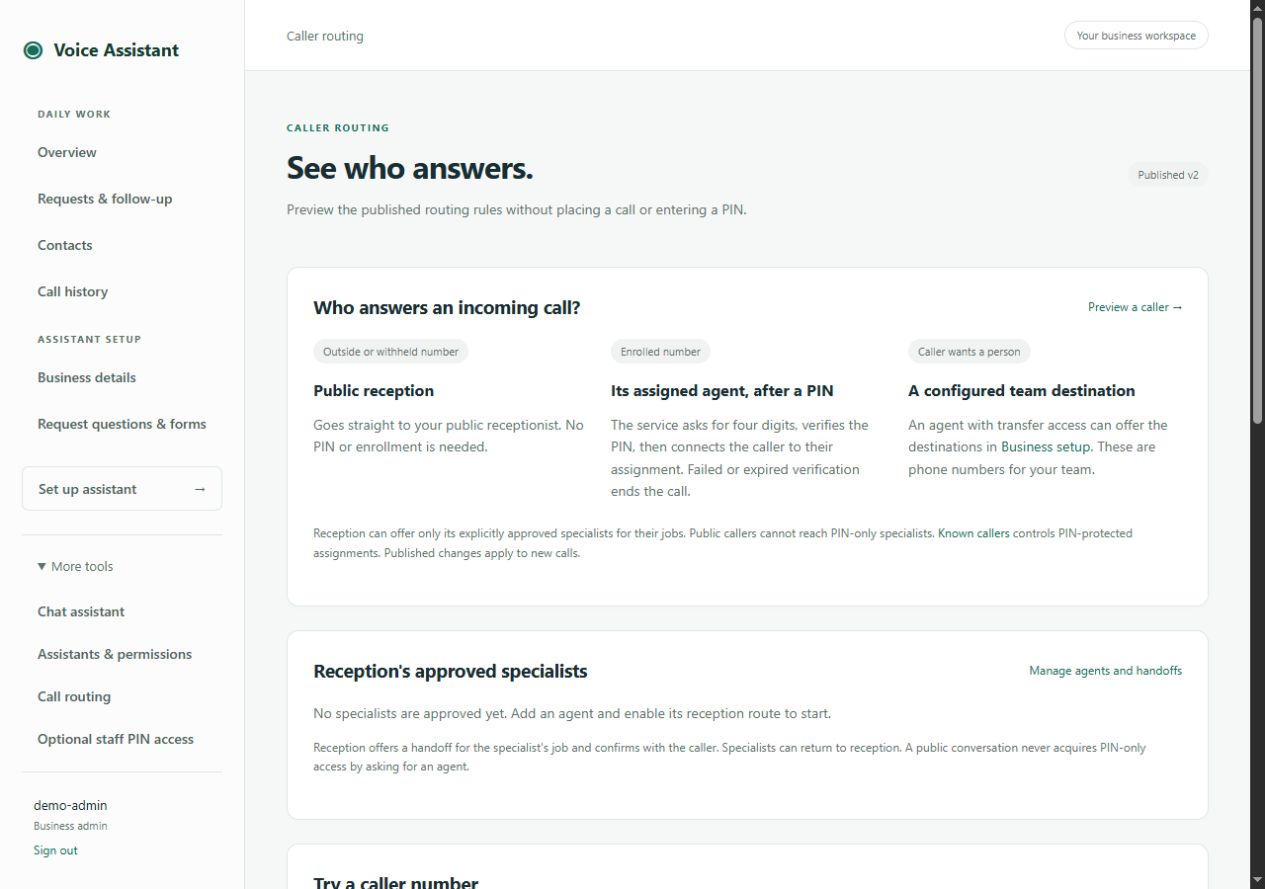
You can explain which assistant answers a particular caller, whether a PIN is required, and which approved handoffs are available afterward.
Use staff PIN access only when needed.
Enrollment is managed under More tools → Optional staff PIN access. It is separate from ordinary customer contacts and from signing into the browser workspace. Saving a contact or knowing an incoming phone number does not grant private assistant access.
Published assistant and permission changes apply to new calls. Calls already in progress retain their captured jobs and access. Shared business information and human destinations are read when needed, so check the scope of a change before assuming an existing conversation has restarted with it.
Call (760) 400-7858 or describe your business workflow. Your private workspace link is provided during onboarding.