
5 MIN READ · REVIEWED OCTOBER 23, 2026
Give your receptionist the right information
Update your business name, public facts, opening greeting, intake guidance, and approved human transfer destinations in the business workspace.
Update the shared business information.
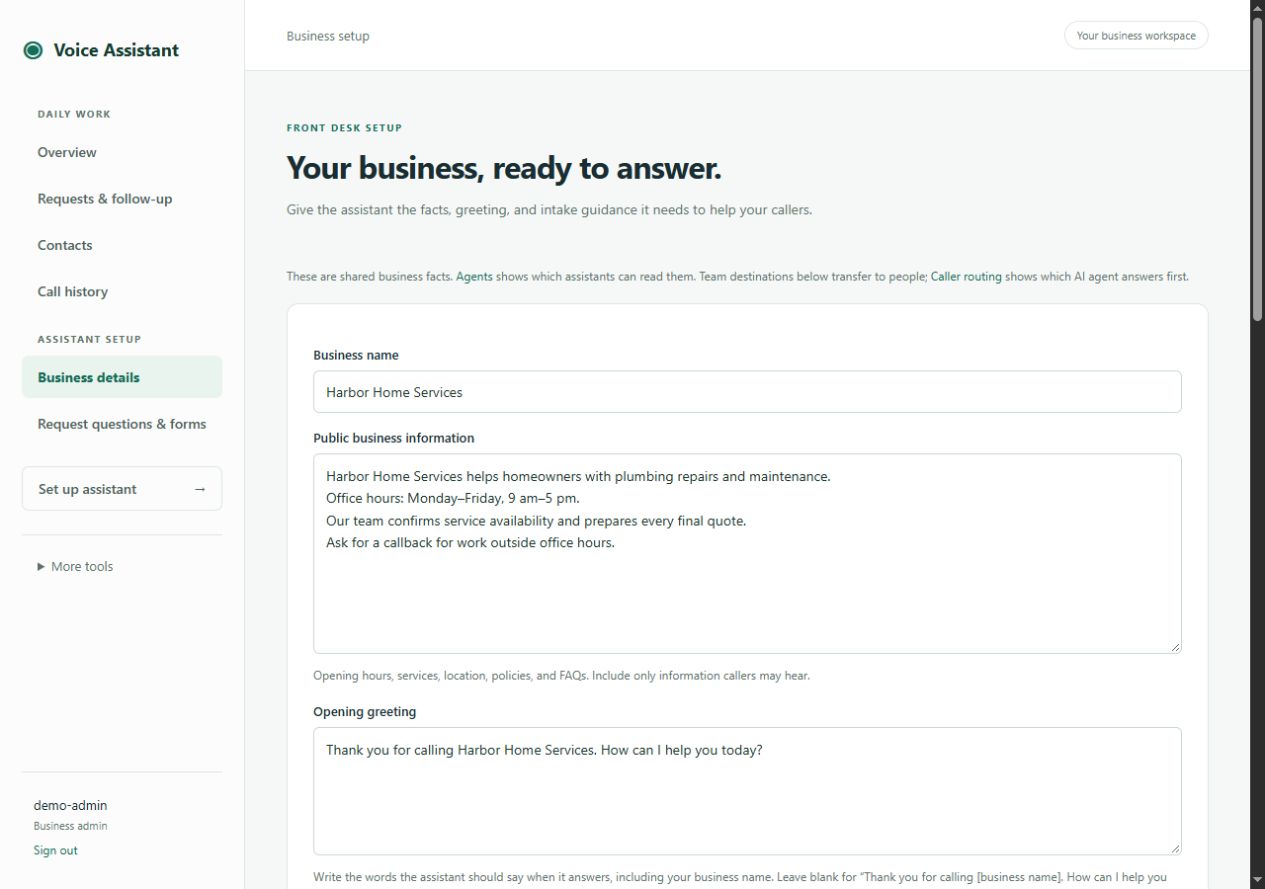
Open Business details in the workspace sidebar. The page heading is Your business, ready to answer. Owners and staff with an editor or admin role can maintain the ordinary business fields.
Set the Business name.
Use the name callers should recognize. Check spelling and pronunciation with a test call.
Write Public business information.
Include opening hours and timezone, location or service area, services, policies, and useful FAQs. Use clear, current facts. Everything in this field should be suitable for callers to hear.
ExampleOur office is open Monday–Friday, 9 am–5 pm Eastern. We handle plumbing repairs and maintenance. Staff confirm service availability and prepare final quotes.
Choose the Opening greeting.
Write the words the receptionist should use, including the business name. If left blank, the default thanks the caller for calling your business and asks how it can help. Listen to the greeting on a real call after saving.
Describe What to collect from callers.
Explain the information your team needs for a useful follow-up. The normal flow confirms name spelling, offers the incoming number as a callback option with the caller’s agreement, and asks for an optional email address. A detailed quote or service workflow has its own request questions as well.
Select Save business setup.
Check the saved result. If another person changed the setup while you were editing, review the latest version before trying to save again. Revisit the page to confirm the values, then make a test call.
The workspace retains your business information and greeting. New conversations use the saved greeting and intake guidance. Callers hear the information your business has approved.
Admin task: configure a human transfer destination.
Find Transfer destinations for your team.
Select Add team destination. Enter a recognizable team or person label, their phone number with + and country code, and a unique lowercase short reference such as office.
Save and test the handoff.
Save the business setup and confirm that the assistant also has transfer capability. Make a test call and request the handoff. A destination is a real person or team; choosing which AI assistant answers first is a separate routing setting.
A configured destination does not guarantee somebody will answer. Agree what the assistant should do when a transfer cannot connect, such as taking a callback request.
Keep information in the right place.
Shared hours, services, and FAQs belong in Business details. A specialist’s job belongs in its assistant instructions. Private staff notes belong in the workspace’s private record or follow-up fields. Writing instructions never grants permission to read records or bypass staff PIN access.
Quote email settings appear farther down this page for admins. Follow the notification steps to save a recipient and check a test.
Call (760) 400-7858 or describe your business workflow. Your private workspace link is provided during onboarding.