
6 MIN READ · REVIEWED OCTOBER 23, 2026
Ask the right questions, on the phone and online
Choose request questions, preview the matching website form, review publication and agent access, and keep website and voice intake aligned.
Decide what makes a request useful.
A short callback can work with a name, agreed contact details, and a summary. A quote or service enquiry may need a consistent set of questions: the work requested, location, equipment, or preferred timing. Start with the information staff actually use.
Each structured intake has a record table, questions, and explicit assistant access. The matching website form uses those same questions. A form submission creates a record and one linked follow-up request after confirmation.
Set up or revise the questions.
Choose a ready-made workflow.
In Set up assistant, review a quote or service request setup. Check its fields, questions, selected assistant, and proposed access before applying. An ordinary callback does not require a new table.
Open the intake in Request questions & forms.
Select the relevant table, such as Quote Requests. Open Fields, questions and table settings, then choose Edit table and questions.
Keep the wording natural.
Ask one useful thing at a time. Use the appropriate field type, required or optional answers, and choices where they help. Add conditional questions only when the answer changes what staff need to know.
Example branch“Is this a repair or a replacement?” A repair can ask about the reported problem; a replacement can ask what is being replaced. Review what happens when an earlier answer changes.
Review and publish the edited intake.
The designer checks the schema and existing records. Changes that would invalidate saved information need to be resolved before publication. Check assistant access as a separate part of the review: a public receptionist usually needs to create confirmed requests without reading other callers’ submissions.
The intake asks the questions your staff need, handles optional answers and branches, and saves a complete confirmed record with a follow-up inbox item.
Preview the matching website form.
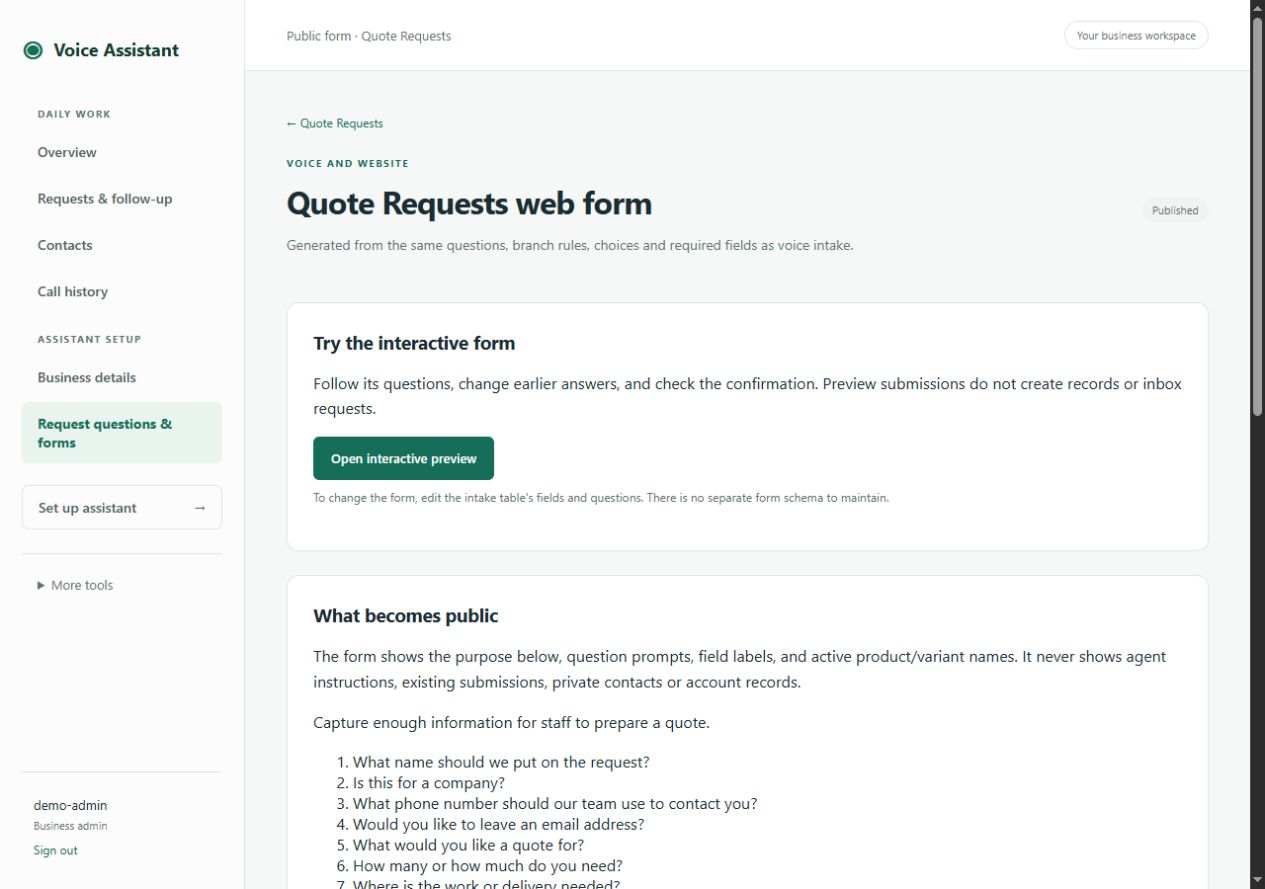
Open Preview and publish matching web form.
This control appears on the intake table page for an admin. Review the purpose, question wording, and what becomes public.
Select Open interactive preview.
Answer the questions, skip optional information, change an earlier answer, and inspect the final review. The admin preview does not save a record or inbox request.
Check the public-facing details.
Visitors can see question labels and prompts, the form’s purpose, and approved public product or variant names where used. Do not put private instructions into those public labels. Private contact or account lookups cannot be published as public choices.
Publish and test the visitor route.
Set the allowed website origin if embedding.
Enter the website’s HTTPS origin in Website allowed to embed this form. Leave it blank for a standalone link. Review and select Publish public form or Republish current intake.
Ask BrackerTech or your site administrator to connect it.
The page provides a hosted form link and website embed code. Your deployment must allow visitors to reach the form while keeping the staff workspace private. An extra login wall or website frame policy can prevent visitors from using it even when publication succeeds.
Test the actual website as a visitor.
Open the public page without a staff sign-in, complete a clearly labelled test, check the review step, and send it once. Then confirm that one record and one follow-up request arrived. If it is a quote and alerts are connected, verify the email too. A published form creates real requests; the admin preview does not.
After a question change
Changing the intake schema suspends the earlier public form until an admin reviews and republishes it. Archiving an intake also revokes publication; restoring it does not silently republish the form. Existing saved requests remain available.
If a form is unavailable, first check its publication and current questions, then ask the site administrator to check the visitor route. Use a new preview to confirm the revised flow before testing the public page.
Call (760) 400-7858 or describe your business workflow. Your private workspace link is provided during onboarding.