
6 MIN READ · REVIEWED OCTOBER 23, 2026
From a call to a completed follow-up
Follow a saved request through the inbox, review agreed contact details, add team notes, and keep progress current. Learn how quote email alerts fit in.
Walk through one quote request.
In our fictional example, Alex Morgan calls Harbor Home Services about a kitchen faucet replacement. The receptionist confirms Alex’s name, agreed callback number, optional email, and request before saving. Your team now has a follow-up to review.
1. Find the saved request.
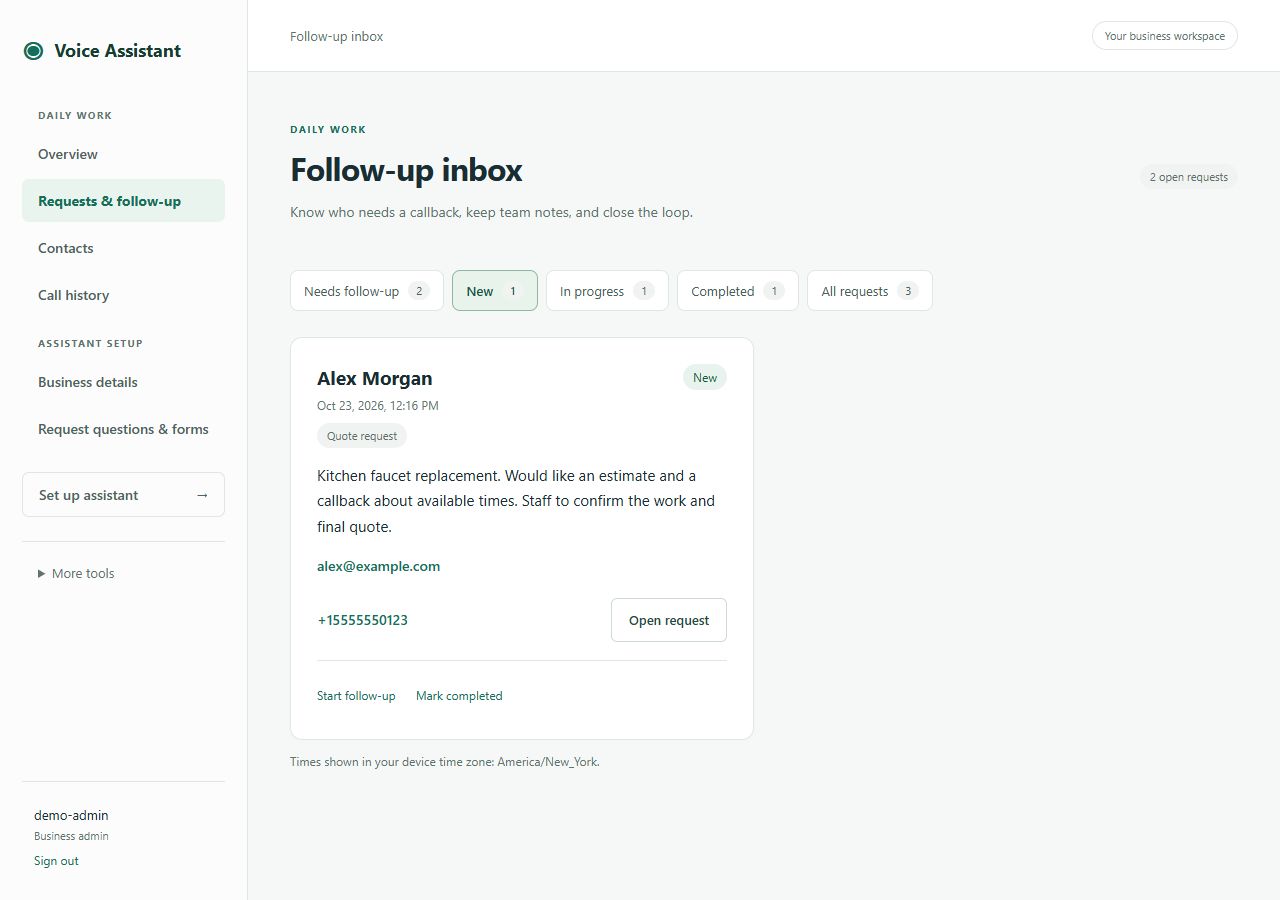
Open Requests & follow-up. The page is titled Follow-up inbox. Use the status tabs to choose Needs follow-up, New, In progress, Completed, or All requests. The overview also links to these groups.
Find the caller’s name and summary, then select Open request. A callback, service request, or general enquiry follows the same staff review process. Website submissions also appear here.
2. Use a quote email as the prompt to review.
When quote email alerts are enabled and the delivery service is connected, saving a quote queues an email to the business’s designated recipient. It includes the saved contact details and a request summary. Callbacks, service requests, and general enquiries do not automatically trigger this quote-only alert.
The saved request remains in the workspace even if an alert is delayed or fails. Check the inbox as part of the workday. An email is a notification; it does not contact the caller or mark the follow-up complete.
Admins can enable alerts and send a test using the quote email guide.
3. Review the details and contact the caller.
Read What the caller needs.
Check the summary and request type. If there is a linked structured record, use the request questions and records area for the full collected information.
Use the agreed contact information.
Call back uses the saved callback number. The email link opens your email application. The incoming number is displayed separately and may differ from the number the caller agreed to use. A withheld number or missing email is possible.
Make the actual follow-up.
For Alex’s quote, staff confirm the work, availability, and how an estimate will be prepared. The receptionist’s request has not already approved a price or booked a visit.
4. Save progress and a useful team note.
Choose the Progress value.
Use In progress while someone is handling the request. Use Completed when your team has finished the follow-up. In the inbox, Start follow-up and Mark completed provide quick status updates.
Write Team notes.
Record what happened and the next action, such as: “Spoke with Alex. Confirmed the job details; the office will prepare the estimate after review.” These notes stay in the business workspace and are not sent to the caller or voice model.
Select Save follow-up.
Return to the inbox and confirm the request appears in the expected status group. If another person saved a change first, compare their latest notes with your edit before saving again. View-only users need an editor or admin to make the update.
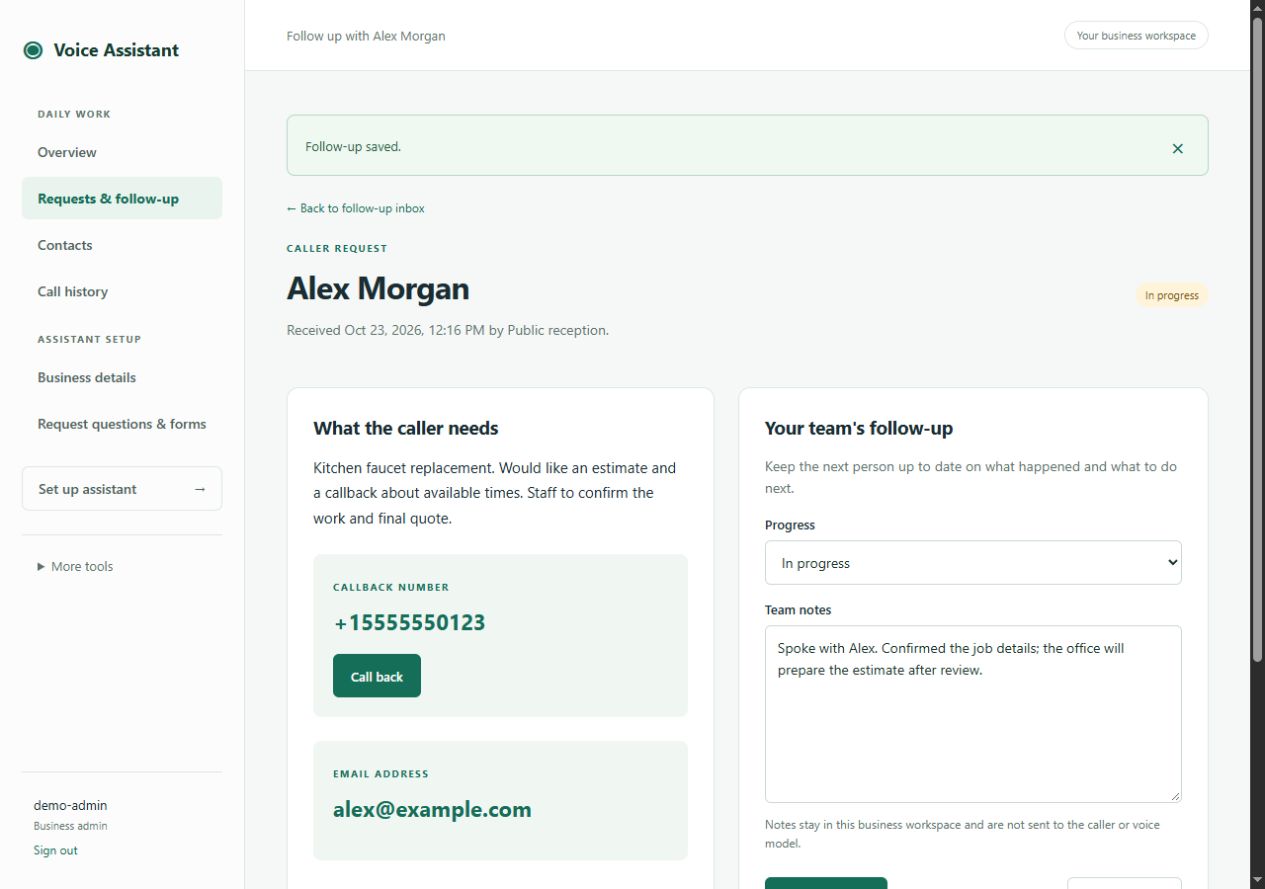
The request has the correct status and a saved note explaining who did what and what happens next. Other staff see that progress when they open it.
5. Close the loop and keep the record.
When finished, save Completed. Use the Completed or All requests tab to find it later. Select Reopen request in the inbox if another follow-up is needed.
Call history helps you find the call’s time, incoming number, assistant, and outcome. It is separate from the agreed callback details and the team’s follow-up notes. The current call history screen is not a promised audio-recording or transcript library.
Call (760) 400-7858 or describe your business workflow. Your private workspace link is provided during onboarding.